By Nick Gelling
Product Test Journalist | Kaipūrongo Whakamātautau Hautaonga
Having a good device at school can benefit your child’s learning. But devices aren’t cheap, and it can be hard to know what is best. We’ve explained what’s important and picked out the exact specifications we’d look for when buying for primary, intermediate and high school kids.
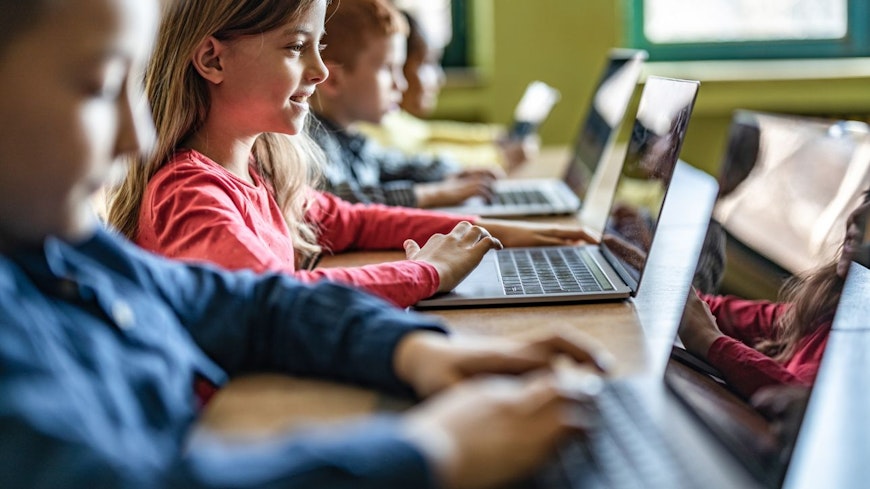
BYOD stands for ‘bring your own device’
Many schools now encourage children to bring their own laptop or tablet to use in class. Legally, schools aren’t allowed to force caregivers to buy their children digital devices: if the devices are required for learning, the schools must provide them. But, if you can afford to, it’s a good idea to get your own BYOD for your school-aged child. A device can make it easier for the child to do their homework and self-directed study.
If you can’t afford one, your school might offer a payment plan or lease-to-own option. There are also charities that seek to bridge the digital divide by helping provide BYOD devices.
The four pillars of BYOD
We’ve identified four key qualities to consider in a BYOD. It’s nearly impossible to tick all four boxes, so pick the most important aspect of a device for your child based on their age, the work they’ll be doing and how clumsy they are.
1. Durability
Generally, the younger the child, the more you need to think about the resilience of their device. Even if your child is an angel, knocks are inevitable. A sturdy device will be made of quality materials, will have a bit of weight to it and, for bonus points, will be splash resistant. For a laptop, check that the hinge looks like it’ll survive repeated opening and closing.
2. Portability
If your child needs to carry their device a lot, whether it’s to or from school or between classrooms, something small and light is a plus. A 2kg laptop will be a real burden. Of course, a small device means a small display. For example, a tablet with an 8-inch diagonal screen might be too tiny for some educational apps.
3. Cost
The older a child, the more you should consider spending on a device. For example, for primary school, your upper limit should be around $600, while a 16-year-old would make better use of a $1,500 laptop.
4. Performance
At a minimum, any device needs to be able to access the internet and use basic apps.
Older teens might have more resource-intensive computing needs. They can start to struggle if their devices are old and cheap.
Unless you spend big bucks, increased processing power tends to come with shorter battery life, so make sure you buy a device that can last a six-hour day (it’s a hassle having to plug in your laptop at school).
How to choose the best BYOD device for school
First, check your school’s guidelines. Most schools provide a list of compatible BYOD models or device requirements along with other school essentials, such as uniform and stationery. Every school’s rules will be different, and the closer you follow them, the less hassle it’ll be.
However, don’t feel you need to follow the requirements to the letter. We don’t think it’s reasonable for a school to insist you buy a new laptop just because your current one is a little older. The crucial thing is to make sure your BYOD has the right operating system (OS). If your child’s device has the wrong OS, or is no longer receiving OS updates, important school software might not work.
Don’t expect one device to last your child through their whole education. Aim for a device that will suit them for the next 3–4 years.
BYOD device types
Basic tablets ($250–$750) are good beginner devices to kickstart electronic learning, but they can be limited in performance and software compatibility. Most tablets run the Android OS, with the exception of iPads. Some schools allow iPads but not Android tablets, or vice versa. If you need a physical keyboard, you can buy a case that has one built in. You shouldn’t need a premium tablet ($800 or more) for learning.
Chromebooks ($350–$800) are laptops that run the lightweight ChromeOS operating system. Because ChromeOS is basic, it doesn’t require top-quality components, so Chromebooks tend to be some of the cheapest laptops. They have physical keyboards, which make typing easy. Some Chromebooks are convertible, meaning they have a touchscreen and can also be used as a tablet. These are more versatile, but often more expensive and less durable.
Windows 11 laptops ($500–$1,500) are jack-of-all-trades devices with excellent versatility and software compatibility. They’re great for both online and offline learning and are usually more powerful than Chromebooks. But a cheap, underpowered Windows computer is uniquely frustrating because Windows is far more demanding than ChromeOS. Windows laptops can cost well over $2,000, but you shouldn’t need one of those for educational purposes.
Apple MacBooks ($2,000+) are good for everyday learning and optimised for graphics work, such as art, graphic design and video editing, but you might run into issues with school software compatibility. They’re also expensive, so consider looking second hand. MacBooks from before 2021 used a different processor architecture that Apple is unlikely to support for much longer, so avoid buying one of them.
BYOD devices and specs we recommend for each age level
Where and how to buy a device
Many schools will work with a retailer on a purchase deal, sometimes at a discount. Check your school’s website for a link.
The computing retailer PB Tech provides a tool on its website (under the BYOD tab) that helps you see compatible models based on which school your child attends. But not all schools have approved the device lists. If in doubt, check your school’s website or contact them and ask.
We suggest comparing prices for the same device across a range of retailers to make sure you’re getting a good deal.
PriceMe and other price comparison websites will show you what your device costs from different retailers. You can use the price history graph to see if a product goes on sale regularly, and what’s a reasonable price to pay.
Extended warranties should be avoided.
The Consumer Guarantees Act (CGA) usually provides better coverage for faulty products, and contents insurance is a better deal to cover accidental breakages (depending on your excess).
Our headphones test results will be useful for anyone thinking of getting a pair of headphones to go with the BYOD.
Buying second hand
You don’t have to buy new. Ex-lease, refurbished or display models let you buy a good device at a lower price. As long as you buy through a store (physical or online), you’re covered by the CGA if anything goes wrong.
Look for a model that was released in the last 5 years. The older a model is, the more software and firmware issues it’s likely to have. Don’t buy a Windows 10 laptop unless it’s guaranteed to upgrade to Windows 11.
Try to avoid buying second hand from individuals as the purchase won’t be covered by the CGA. Also, digital devices are a favourite with petty thieves, so it can be hard to know if you’re buying stolen goods.
Tips to protect your device
Buy a screen protector, especially for touchscreen devices.
Store the device in a shock-absorbing case and/or carry bag.
Install security software for protection from viruses and vulnerabilities.
Talk to your child about caring for their device, especially not dropping or knocking it.
Check if your child’s school has secure BYOD storage in the classroom.
Take photos of the device, record the serial number and label the device with your child’s name, in case it gets left somewhere or stolen.
Consider getting a home contents insurance policy that covers the device while it’s off your property – your child’s school might not take responsibility for loss or damage.